Part of The Enoch Files
How I Fixed Fifteen Years of Bad Habits when I Migrated 17,000 Documents from Evernote to Enoch File
As my father grew older, he asked me to help him pay his bills. Not with my money—he was blessed to have enough in his retirement accounts—but to keep track of the bills and make payments from his checking account. At the time, he was in his mid-70s and was beginning to suffer from mild cognitive decline, so he was easily confused. It made sense that he would need some help. Of course, I said yes.
For the next twelve years, I logged into his bank account and paid every single one of his bills, filed all his tax returns, replaced his credit cards when he lost them, kept him from being scammed, and made sure he had spending money. Because it was not my money, I wanted to keep detailed records, so I scanned and saved everything in an Evernote notebook.
Over time, all these documents grew into a notebook that held more than 5,000 notes. When I searched for his bank, the search turned up twelve years of records. When I searched for the power bill, I found 150.
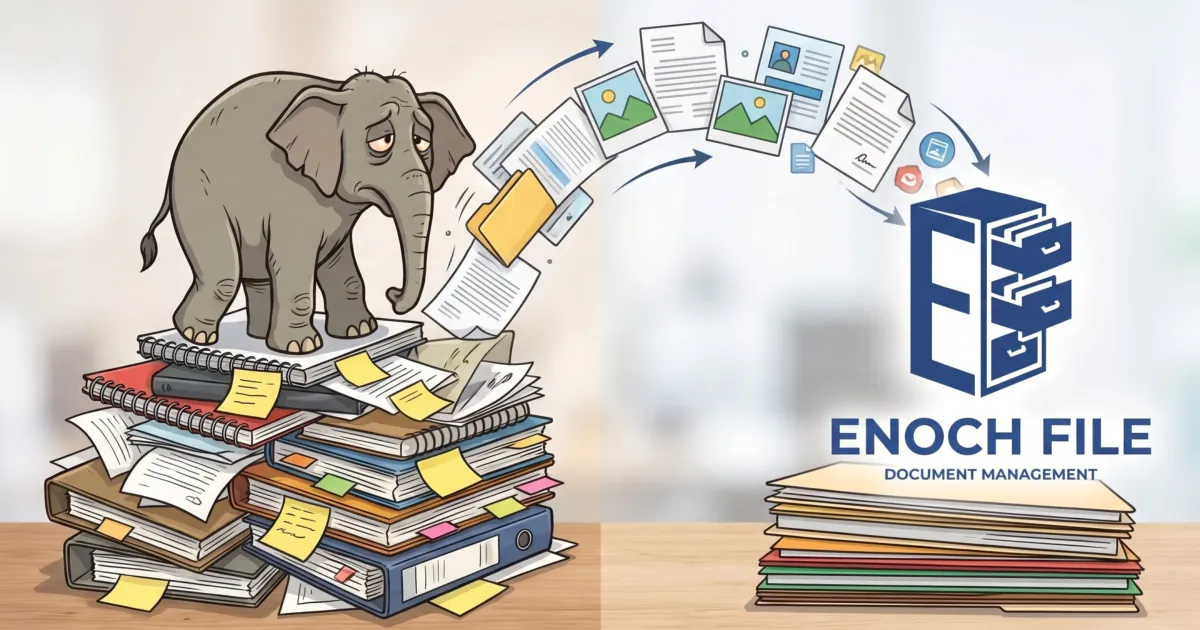
It was a mess, and it all started because I dumped everything into a single notebook. But it didn’t have to end that way. I decided to use my migration to Enoch File as an opportunity to fix the problem and prevent it from happening again.
I sorted his documents by year and copied them into new notebooks. The first one was Jack 2012-2013. The next one was Jack 2014, then Jack 2015, and so on. When the sorting was done, each notebook had between 350 and 800 files. That’s much easier to handle than 5,000.
Copying them was made more difficult because Evernote limits you to copying only 100 notes at a time. So if there were 527 notes from 2017, I had to copy them in six separate batches instead of all at once.
Bite-Sized Pieces
Once the sorting was complete, I exported each of the new notebooks and then imported them into an Enoch File cabinet I created called “Jack’s Old Files.” I would start an import and then work on something else in another window while Enoch File worked its way through importing the hundreds of files. The importing went faster than I had feared because most of the documents were PDFs of five pages or fewer.
Enoch File gives you a list of documents that failed to import. Out of the 5,000, only two failed. I checked, and the original files in Evernote were unreadable gibberish; probably a corrupted file or an improper extension.
When I finished importing, I moved all the older drawers to the archive, keeping Jack 2019 to the current day in its own cabinet.
(If you’d rather see the import process demonstrated than read about it, there’s a four-minute video walkthrough at the bottom of this post.)
More of the Same
This approach was so successful that I used a similar one when it came time to import my “Statements” notebook, which contained fifteen years of electric bills, mortgage payments, phone bills, car payments, bank statements, etc. I searched for the name of my utility companies and copied those files into a new notebook called “Gas and Electric Statements.” Then I searched for my bank and copied those notes into a notebook I named “Bank Statements.” I also created a “Miscellaneous Statements” notebook for random or one-off statements. Then I exported those notebooks from Evernote and imported the resulting ENEX files into Enoch File. This time, it went even faster as most of these notebooks had fewer files. There were also no errors.
I didn’t do this all in a single day. I broke the work into four blocks. Just sorting and exporting all of Jack’s files took at least two hours. Importing them and a bunch of other notebooks was another block of time. I’d say I spent eight to ten hours in total, working a few hours at a time over the course of a week. The result has been worth it. My files are better organized, easily accessible, secure, and I no longer have to worry about how I will access my files when my Evernote subscription expires.
Storage Limitations
Before I finished importing the 5,000 files from my father’s notebook, Google was sending me warnings that I was running out of disk space; that’s because my free Google account came with 15 gigabytes, which are used by Gmail, Google Photos, Google Drive and even your Android Phone backup. I went to Google One and signed up for 100 gigabytes of storage for $19.99 a year, a fraction of what Evernote charges. By the time I completed importing all my files, I had used only 20 gigs, leaving me with plenty of capacity for future growth. Since I can share that space with family members, my wife now has extra space for her Enoch documents as well.
I should note that if you ignore warnings from Google, Enoch File will tell you when you run out of space. You can then free up space or buy more, as I did.
Key Lesson
Whether you are importing documents from Evernote or another cloud service doesn’t matter. The key lesson here is that your documents will be easier to manage if you break them into smaller chunks from the get-go. While Enoch File can handle drawers with 3,000 or 5,000 files, you will find it more efficient to work with smaller drawers and folders.
Breaking things out by year is a great default solution. If I had simply organized my statements by year from the start, the migration wouldn’t have required this much surgery.
The advantage of breaking them out by type, instead of year, is that I can find a file by vendor or merchant. So if I don’t know what year I bought the toaster oven or got my new phone, I can just search my credit card drawer or my cell phone statements. Storing data in drawers or folders by type rather than date can also make searching, filtering, and sorting work better, but more on that in another post.
If you have any questions about importing files from Evernote or another cloud service into Enoch File, reach out to us via the contact us page or use the chat function.
If you’re already using Google Drive and wondering how Enoch File fits alongside it, I explored that question in Enoch File: For the Other 90 Percent.
See the Import in Action
Here’s the four-minute walkthrough of exporting a notebook from Evernote and importing it as a Drawer in Enoch File.